
How to use the composer and email formatting tools
- Leitura
- 2 min
- Categorias
- Compose and send emails
- Proton Mail settings
When you click New Message on the Proton Mail home page, a composer window will appear in the bottom right corner of your browser.
This is where you write new email messages.
In this article, we show you how to configure the composer and how to use its text formatting tools. Learn more about how to send messages in Proton Mail
- Window size
- Text formatting (font, text size)
- Right to left mode
- Plain text mode
Window size
By default, the composer opens in a small window. This allows you to scroll through your inbox while composing your message.
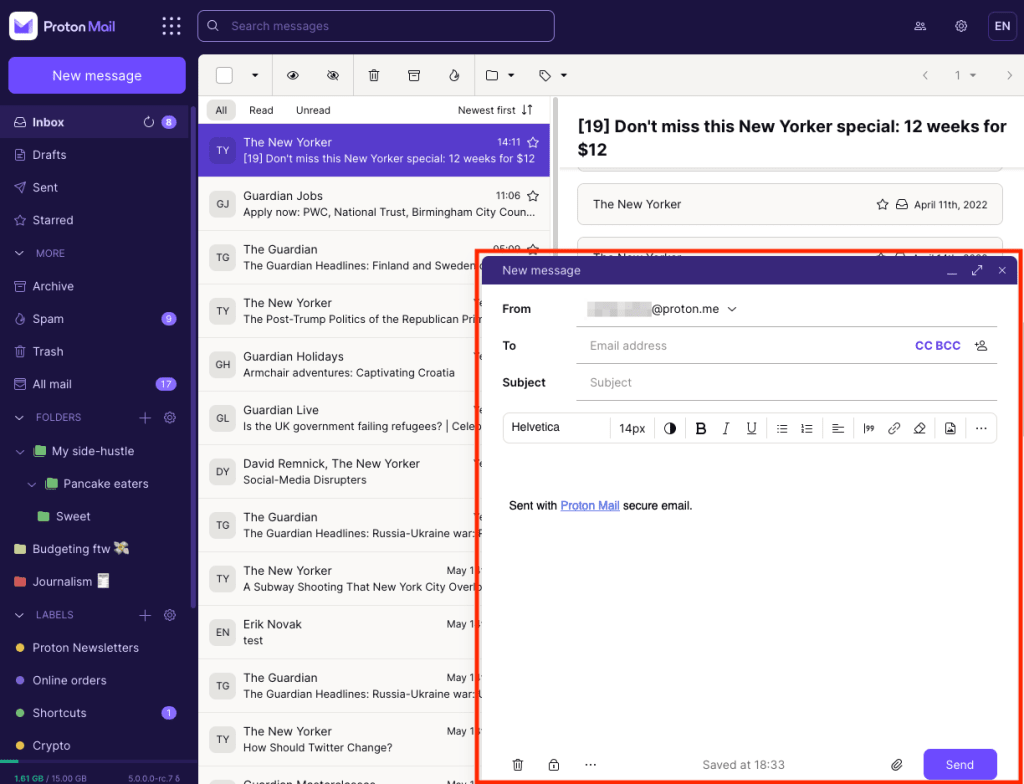
Change window size
To maximize the composer window, click the two-arrow icon in the top right corner of the composer, or use the shortcut Ctrl+Shift+M.
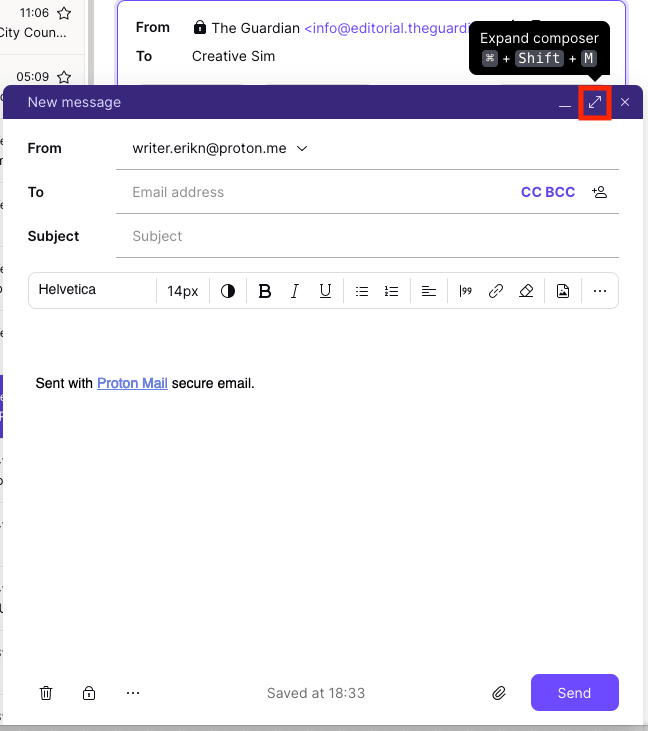
To switch back to the normal window, click the two-arrow icon again, or use the same keyboard shortcut (Ctrl+Shift+M).

Change default window size
- Open your account settings (Settings → All settings).
- Select Messages and composing from the sidebar (under Proton Mail).
- Scroll to Layout and click Composer.
- Select Normal for the smaller window, or Maximized for the full-sized window.

Text formatting
The formatting toolbar is at the bottom of the composer. Here, you can:
- Change font, text size, and colour
- Apply bold, italic, underline, and strikethrough
- Add bullet lists, numbered lists, quotes, and more
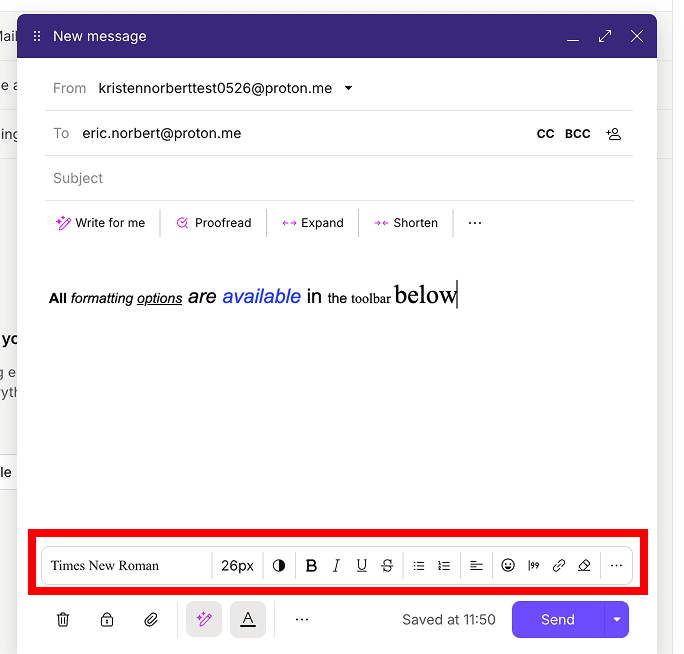
Set default font and text size
- Open your account settings (Settings → All settings).
- Select Messages and composing from the sidebar (under Proton Mail).
- Scroll to Composing and adjust the Composer default font/size to your preference.
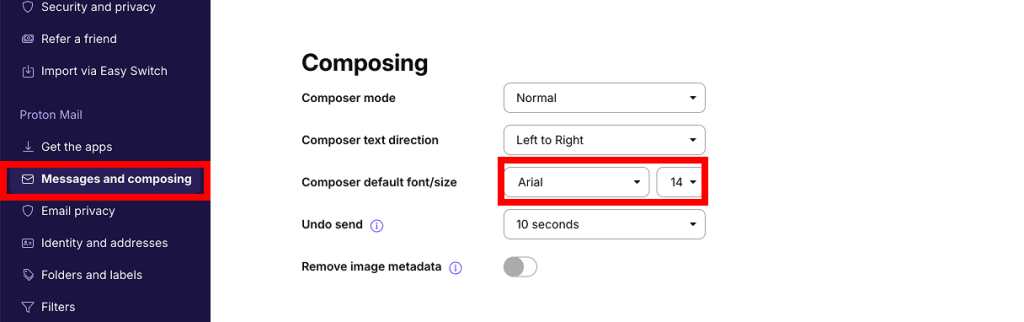
Right to left mode
If you want to write an email in a right to left language, you can activate this in the composer.
1. Open the email composer. Click the three dots (…) button in the formatting toolbar and check Right to Left.

- To write in right to left mode, a right-to-left language must be installed and enabled in your operating system.
- Right to Left mode is not compatible with plain text mode.
Set right to left mode as default
- Open your account settings (Settings → All settings).
- Select Messages and composing from the sidebar (under Proton Mail).
- Scroll to Composing. Set Composer text direction to Right to Left.

Plain text mode
You can also write in plain text mode, which removes all formatting options from the composer.
Enable plain text mode
1. Open the email composer. Click the three dots (…) button in the bottom toolbar.
2. Check Plain text.
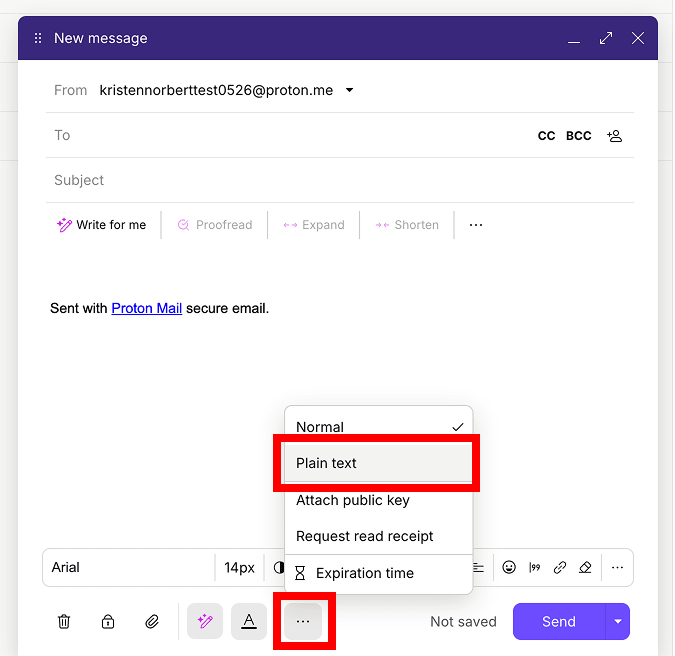
To disable plain text mode, click the three dots (…) button again and check Rich text.
Set plain text mode as default
- Open your account settings (Settings → All settings).
- Select Messages and composing from the sidebar (under Proton Mail).
- Scroll to Composing. Set Composer mode to Plain text.
