
How to use Pass access tokens
- Leitura
- 4 min
- Categoria
- Using Proton Pass
With Proton Pass’ access tokens, you can give your AI agents access to the credentials they need, without compromising your security. They can also be used to securely deploy credentials in automation scripts and CI/CD (continuous integration/continuous deployment) pipelines, etc.
Learn more about access tokens
| Plans | Platforms |
|---|---|
| Available on Pass Plus, Pass Family, Proton Unlimited, Pass Professional, and Workspace Standard plans | Proton Pass web app |
In this article
- How to create an access token
- How to manage vault access
- How to view agent activity
- How to delete an access token
- How to use access tokens with an AI agent
Create an access token
1. Sign in to pass.proton.me(nova janela). Access tokens will soon also be available on the Pass desktop app and the Pass browser extension.
2. Go to Settings → Access tokens.

3. Select New token.

4. Give your token a name, set an expiry period in minutes (from one hour to one year), and select which vaults the token can be used to access. If you plan to use this token with an AI agent, toggle the Use for AI agent switch on.

4. Your new access token has been created. If you’re not using it with an AI agent, you can copy the token for use in your application. See here(nova janela) for list of commands that Pass CLI accepts when designing your own markdown docs, automation scripts, and applications.
For security reasons, your token won’t be shown again, as anyone who sees it can access to the selected vaults.

If you selected the Use for AI agent toggle, we’ll give you a set of markdown instructions that your agent will understand.

Simply copy them and send to your AI agent.

Your agent, custom script, or, application can now access your shared vault(s).
Manage vault access
1. Go to Settings → Access tokens. Click the vertical ellipse icon (⋮) next to the access token you wish to edit, then select Manage vault access from the menu.

2. Select the vaults this access token can access. Click Save when you’re done.

View agent activity
With Proton Pass tokens, you stay in control. Every time an AI agent uses an access token to access a credential, the access is logged and thew agent has to give a reason for the access. To view agent activity:
1. Go to Settings → Access tokens. Click the vertical ellipse icon (⋮) next to the access token you wish to edit, then select Manage vault access from the menu.

2. You can now see every time agent has accessed your vault, with a reason for the action.

Delete an access token
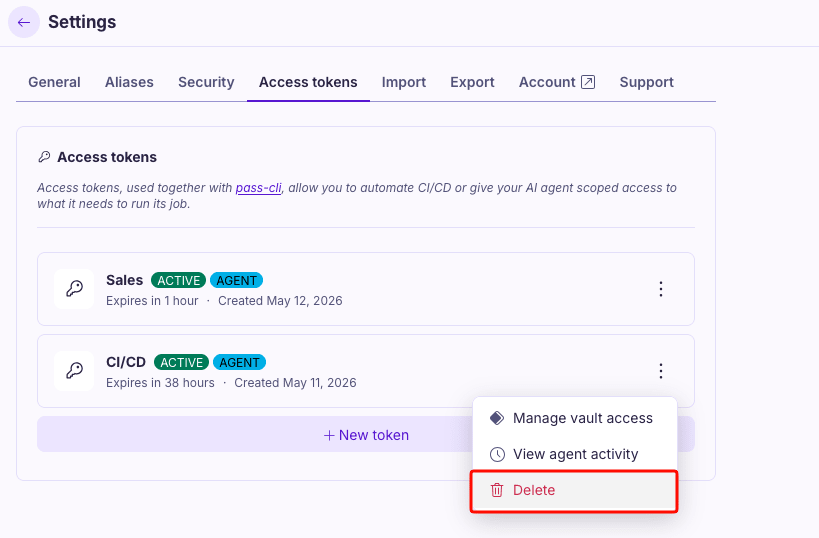
1. Go to Settings → Access tokens. Click the vertical ellipse icon (⋮) next to the access token you wish to edit, then select Delete from the menu.
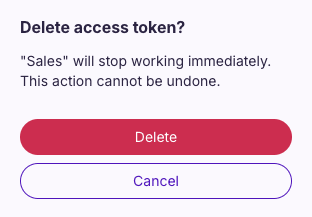
2. Click Delete. The access token will stop working immediately, and the deletion can’t be reversed.
How to use access tokens with an AI agent
If using an AI agent, you can ask it to perform actions that require access to your logins and other Pass credentials that you’ve shared with it. Here are some example actions to get you started:
Personal finance and subscription management
- “Log into my bank’s API (read-only scope) and identify recurring subscriptions I haven’t used in 90 days”
- “Access my credit card statements securely and categorize expenses by merchant for tax preparation”
- “Check my investment portfolio across multiple accounts and rebalance recommendations based on target allocation”
Be careful to use read-only scopes for financial data, never write permissions.
Smart home and IoT applications
- “Access my home automation system and create a report on energy usage patterns”
- “Query my security camera logs (authenticated) and summarize unusual activity last week”
- “Check my smart thermostat history and suggest optimal scheduling based on occupancy patterns”
Development and DevOps automation
- “Check my private repo’s CI/CD pipeline status and summarize failed builds from the last week”
- “Review my team’s pull requests in the private repository and flag any that haven’t been reviewed in 3+ days”
- “Access my Docker registry credentials and tell me which container images need security patches based on vulnerability scans”
- “Query my Jira workspace for tickets assigned to me that are blocked and summarize the blockers”
Healthcare and personal records
- “Access my encrypted health records vault and summarize lab results from the past 6 months, highlighting trends”
- “Query my medication database and alert me about potential interactions with a new prescription”
- “Pull data from my fitness tracker accounts and create a weekly wellness report”
Cloud infrastructure management
- “Access my AWS (scoped to read-only) and identify unused resources costing money”
- “Check my server monitoring dashboard and summarize uptime issues from last month”
- “Query my database backup logs and confirm all critical databases have recent successful backups”
Social media and content management
- “Access my private analytics dashboard and compare engagement metrics across platforms for Q1”
- “Log into my CMS admin panel and draft a content calendar based on top-performing posts”
- “Check my email marketing platform and segment subscribers who haven’t opened emails in 6 months”
Academic and research
- “Access my university library account and find papers related to my research topic that I have institutional access to”
- “Query my citation manager database and generate a literature review outline”
- “Access my research data repository and summarize experiment results from the past year”