
How to forward emails sent to your aliases to additional mailboxes
- Reading
- 1 min
- Categories
- Email aliases
- Proton Pass
If you have a paid Proton Pass plan, you can send emails using your email aliases. Once you’ve emailed someone using an email, you can then forward their reply to a chosen inbox or multiple inboxes.
Add a new mailbox
- Go to Settings ⚙. Select the Aliases tab.
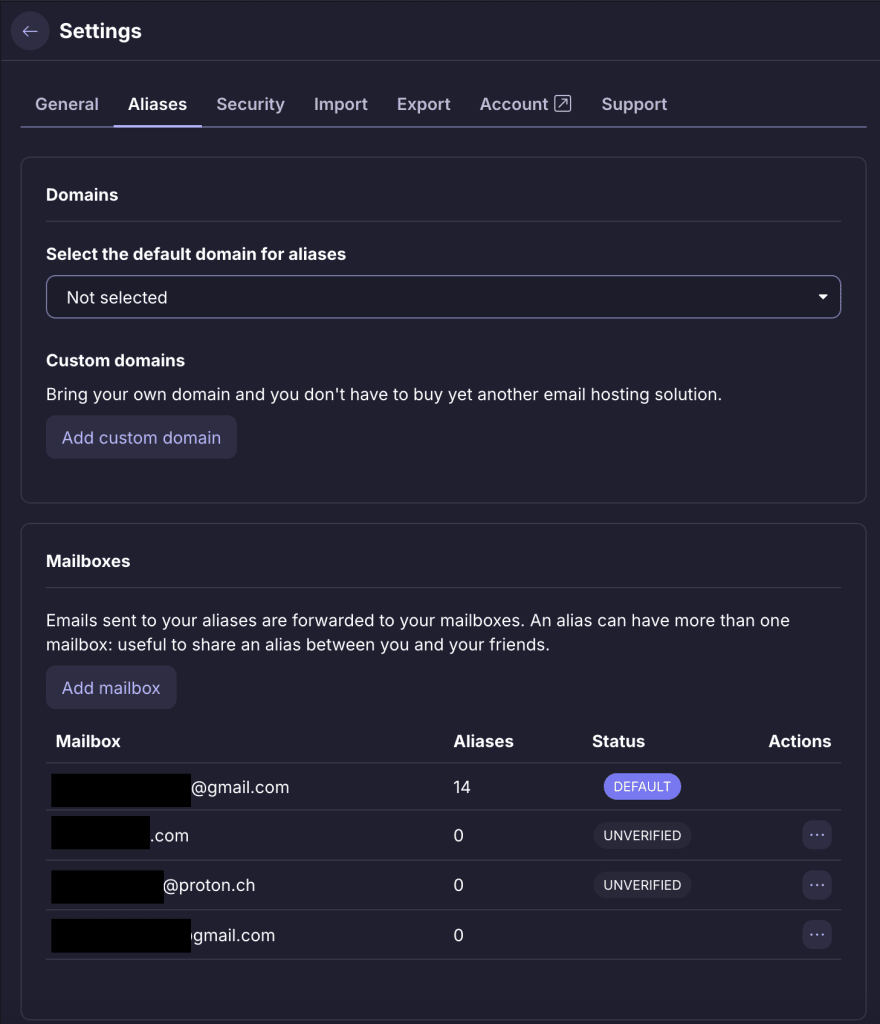
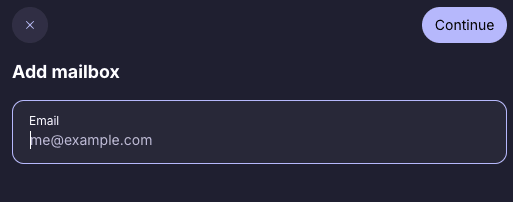
- Scroll to Mailboxes and select Add mailbox. Enter the email address for your mailbox → Continue
- To verify your account, a code will be sent to your inbox. Enter the verification code and click Confirm.

Your mailbox has been created. You can see all of your additional mailboxes under Mailboxes.

- Under status, you’ll be able to see if an address is verified.
- You can set any verified mailbox as your default. Just click ⋯ (actions).
Change or add a forwarding mailbox for an alias
Once you’ve added a mailbox, you can use it as the forwarding address for your aliases. You can choose one or more mailboxes for an alias.
- Choose the alias you’d like to change the forwarding mailbox for and select Edit.

2. Select Forwards to and choose one or more mailboxes.

3. Select Save. Any emails sent to this alias will now be received in these mailboxes.
