
How to set up FIDO2 on your mobile device
- Lecture
- 1 minute
- Catégories
- Proton Pass
- Using Proton Pass
FIDO2 is an open authentication standard that is used in hardware security keys, passkeys, and other cryptographic credentials. You can now use a security key for your two-factor authentication (2FA) to get into Proton Pass in place of a time-based one-time code. This makes 2FA even easier as all you need to do is tap or plug the key to your device to be authenticated.
Log in using your security key
Set up your security key
You can use a security key to authenticate your identity on Proton Pass. This key is either a USB or NFC device that you can tap or plug into your device to use as a passwordless identity authenticator. Please note that you’ll need to have 2FA enabled on your device and a 2FA authenticator app installed to set up your security key.
If you haven’t done this yet, you can find a full guide to setting up your security key.
Log in using your security key
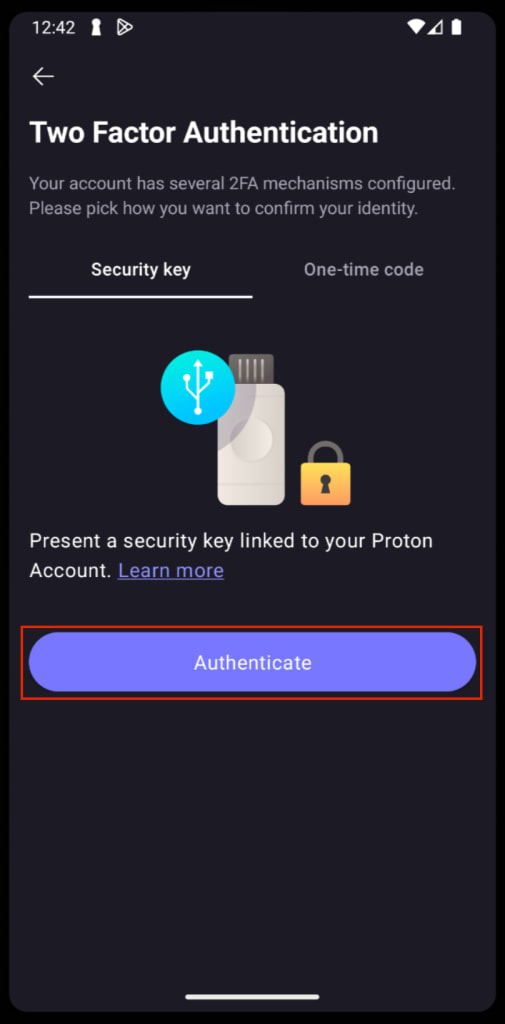
- If you’ve already set up a security key, Pass will recognize this and ask you to authenticate it.
2. First, you’ll see that no passkeys are currently available for your Pass account. Tap Use a different device to add a new passkey.

3. You’ll then be able to select the type of security key you have.

4. Activate your security key to connect it to your Proton Pass account.
